In this tutorial, we will take a simple flask app from our local machine to a server online. I assume it is your first time doing this and I try to explain everything to the most basic level. Sorry to the Ninjas
Boring Talk
You can scroll to the tutorial Section if it gets boring here.
So what the hell is a server?
Let’s make it practical since we’ve all used the internet before. When you visit a website to look for information, basically, you are a client on the internet and someone needs to serve you with that information. It is like this:
- Internet —Restaurants
- You the client— Customer
- Server — Waiter/Server
- request for webPage — Order for food
So when we build web apps with Flask, Django, or Pyramid, we are designing what and how to serve our customers so that a computer can serve our clients for us.
Okay, so How Do I Serve?
From what is said above we can tell that a server is just another computer. A computer that does one thing — Serve. Any computer could be a Server. I once used my raspberry pi as a staging server. When you are developing with Django or Flask, you have a development server running on your local machine.
$ python -m SimpleHTTPServer 8000
This command starts a server at port 8000 in the directory it was run from.
But we need a constant power supply, A stable internet connection with a reasonable speed, and sometimes an ample storage space to keep our Restaurant open at all times. That is why we need the services of Server Companies to help us stay online.
Tutorial
We have several options available to us because its 2018 and cloud computing is the hot cake for conglomerates. We will use PaaS/IaaS(Platform as a Service/Infrastructure as a Service) for our hosting because we get to skip operating system configurations, server setup, and focus on deploying fast. Plus it’s cheaper and mostly free. We have Google App Engine, Amazon Web Services, Heroku, and pythonanywhere as our favorite options today. click here if you want to read more about PaaS/IaaS.
Part 1: Deploying to PythonAnywhere.
For simplicity, let us all clone this simple app. and see it run locally. Use this only if you don’t have a working flask app but you want to follow the tutorial
$ git clone https://github.com/puclubug/simple_flask_app.git
$ cd simple_flask_app
$ git remote rm origin
$ python main.py
You can visit http://localhost:8000/ in your browser to see it run and use CTRL+C to quit the server when done. If you don’t have git installed, take a minute to get it here.
But If you have built your flask app locally on your machine, then in your app’s directory run this in your bash over there
echo "# simple_flask_app" >> README.md
git init
git add README.md
git commit -m "first commit"
Steps
- Create accounts on GitHub and PythonAnywhere if you haven’t done that already and confirm your accounts in your email.
- Go to your GitHub account and Add a new repository on GitHub — name it “simple_flask_app”. Leave everything as it is, only enter the name and click on create repository
- In your flask app directory, open command prompt and run this but replace my github username — aduuna with yours
git remote add origin https://github.com/aduuna/simple_flask_app.git
git push -u origin master
- Let’s create a requirements.txt file, it contains a list of all the installed libraries needed for new python environments to run our code.
New File: requirements.txt
Click==7.0
Flask==1.0.2
itsdangerous==0.24
Jinja2==2.10
MarkupSafe==1.0
Werkzeug==0.14.1
Those running this in a contained virtual environment can run
$ pip freeze > requirements.txt
to get it automatically created.
- Now let’s commit our changes
$ git add .
$ git commit -m "Added requirements.txt"
$ git push origin master
- Head over to your dashboard on pythonanywhere and click on the blue “$ bash” button to start a bash console on the remote computer pythonanywhere just gave you when you created an account. Treat it just like you treat your bash on your local machine. let us clone our source code onto our new machine:
$ git clone https://github.com/aduuna/simple_flask_app
Once again Don’t forget to change my username(aduuna) to yours.
- click the web tab to add a new web app
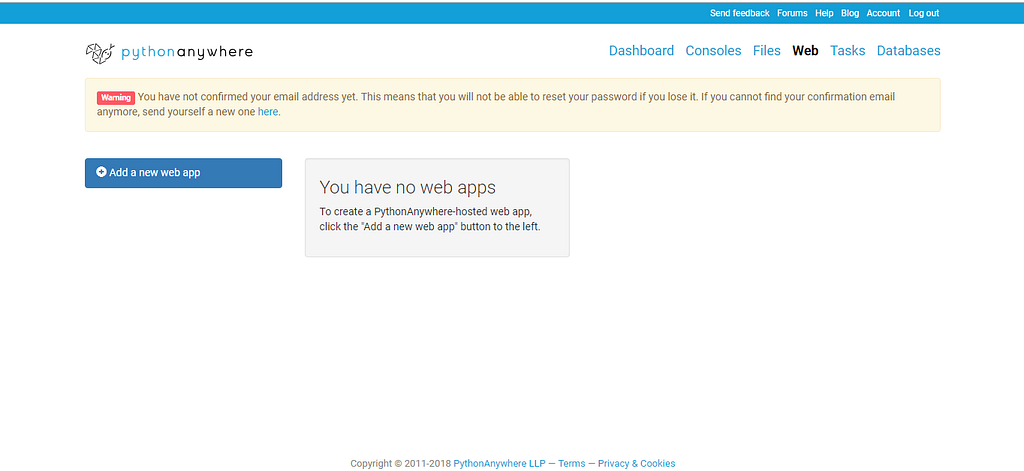
In the web Tab, add a new web app
- Click Next
- click Flask then Python3.6
- change the path name to “/home/kingkunta/simple_flask_app/main.py”
- click Next to complete
- Setup on pythonanywhere is as easy as:
on your online console run
$ cd simple_flask_app
$ mkvirtualenv --python=/usr/bin/python3.6 my-virtualenv
$ workon my-virtualenv
$ pip install --user -r requirements.txt
$ git checkout main.py
- We are done. Reload Website in the web Tab. And view your website online at https://kingkunta.pythonanywhere.com.
Note: yours will be at https://your_username.pythonanywhere.com
All variables used here like “simple_flask_app”, “my-virtualenv” can of course be replaced by anything of your choice, just keep it simple.
Summary
All that we did was to upload our code from our desktop to github and then we download the same code to our computer at pythonanywhere and boom, we had our app online.
I will be back with Part 2 where we use Heroku to host our webapp, I hope you enjoyed it. If you have any questions, corrections or additions you can send me a quick email here or leave a whatsapp message